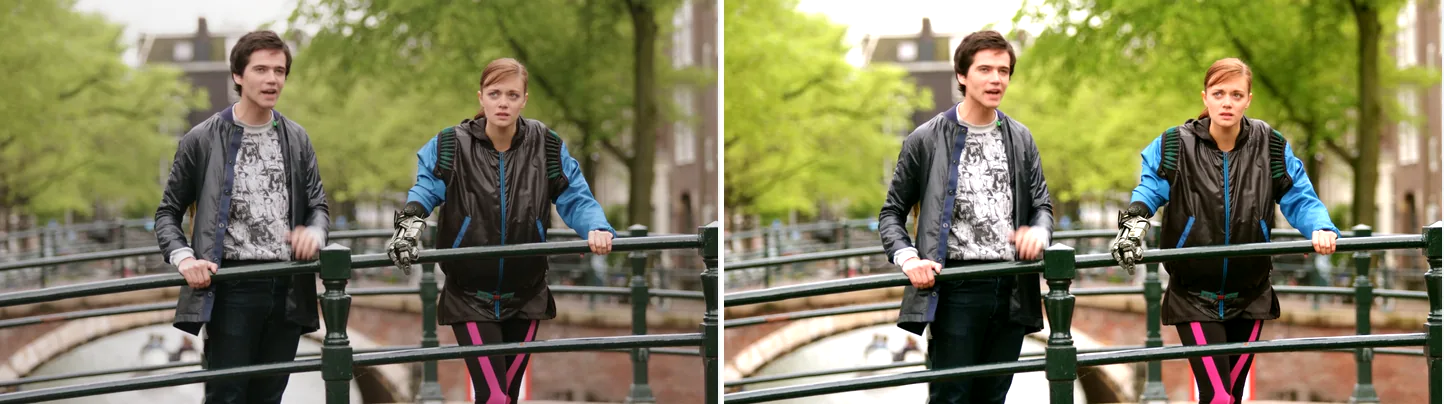
Left is the untouched frame. Right is eq=brightness=0.10:contrast=1.35:saturation=1.6, which raises brightness, contrast and saturation together.
Source: Tears of Steel (CC) Blender Foundation | mango.blender.org, CC BY 3.0. One frame of the film, processed with the filter shown.
Basic Commands
Increase Brightness
ffmpeg -i input.mp4 -vf "eq=brightness=0.1" output.mp4brightness accepts -1.0 to 1.0, and the default is 0. Positive values brighten the image and negative values darken it. To choose between eq, curves and colorbalance, see the color correction overview.
Increase Contrast
ffmpeg -i input.mp4 -vf "eq=contrast=1.5" output.mp4contrast accepts -1000.0 to 1000.0, and the default is 1. 1 leaves the image unchanged, and larger values increase contrast.
Apply Gamma Correction
ffmpeg -i input.mp4 -vf "eq=gamma=1.5" output.mp4gamma mainly changes the brightness of the shadows and midtones. It accepts 0.1 to 10.0, and the default is 1. 1 leaves the image unchanged, values above 1 brighten the shadows and midtones, and values below 1 darken them.
Adjust Saturation
ffmpeg -i input.mp4 -vf "eq=saturation=1.5" output.mp4saturation sets how strong the colors are. It accepts 0.0 to 3.0, and the default is 1. 0 gives grayscale and 1.5 makes colors more vivid. To shift the hue itself, use the hue filter.
Parameter Reference
| Parameter | Description | Default | Range |
|---|---|---|---|
contrast |
Contrast | 1.0 |
-1000 to 1000 |
brightness |
Brightness offset | 0.0 |
-1.0 to 1.0 |
saturation |
Saturation multiplier | 1.0 |
0.0 to 3.0 |
gamma |
Gamma correction | 1.0 |
0.1 to 10.0 |
gamma_r |
Gamma for the red channel | 1.0 |
0.1 to 10.0 |
gamma_g |
Gamma for the green channel | 1.0 |
0.1 to 10.0 |
gamma_b |
Gamma for the blue channel | 1.0 |
0.1 to 10.0 |
gamma_weight |
Highlight-protection weight | 1.0 |
0.0 to 1.0 |
Specifying Multiple Parameters at Once
ffmpeg -i input.mp4 -vf "eq=brightness=0.05:contrast=1.2:saturation=1.3:gamma=1.1" output.mp4Separate the settings with colons (:) to set several at once.
Adjusting White Balance with Per-Channel Gamma Correction
ffmpeg -i input.mp4 -vf "eq=gamma_r=0.9:gamma_g=1.0:gamma_b=1.1" output.mp4Lowering the red gamma slightly and raising the blue gamma gives a cooler, bluer look.
Grayscale Conversion
ffmpeg -i input.mp4 -vf "eq=saturation=0" output.mp4saturation=0 removes all color and leaves a grayscale image.
Dynamic Parameters (Changing Over Time)
eq values can also be formulas (FFmpeg expressions).
ffmpeg -i input.mp4 -vf "eq=brightness='0.1*sin(t)':eval=frame" output.mp4t is the time of the current frame in seconds, so the brightness rises and falls in a wave. eval=frame makes eq recalculate the expression for every frame. Without it, the expression is calculated once at the start and the brightness does not change over time.
Practical Correction Examples
Brighten a Dark Video
ffmpeg -i input.mp4 -vf "eq=brightness=0.1:contrast=1.1:gamma=1.3" output.mp4Make a Faded Video More Vivid
ffmpeg -i input.mp4 -vf "eq=saturation=1.4:contrast=1.15" output.mp4Give the Video a Hard, Cinematic Look
ffmpeg -i input.mp4 -vf "eq=contrast=1.2:saturation=0.85:gamma=0.95" output.mp4What Not to Do
Bad example: saturatoin (misspelled)
ffmpeg -i input.mp4 -vf "eq=saturatoin=1.5" output.mp4
A misspelled option name stops FFmpeg with Error applying option 'saturatoin' to filter 'eq': Option not found.
Differences from the hue Filter
| Feature | eq |
hue |
|---|---|---|
| Brightness | ✓ (offset) | ✓ (offset) |
| Contrast | ✓ | ✗ |
| Gamma | ✓ | ✗ |
| Saturation | ✓ | ✓ |
| Hue rotation | ✗ | ✓ |
Use eq for brightness, contrast and gamma, and hue to change the hue.
Measured: time and size
Here is the command that was measured.
ffmpeg -i input.mp4 -vf eq=brightness=0.1 -c:v libx264 -crf 23 -preset medium -an output.mp4| Metric | Measured |
|---|---|
| Wall time | 27.07 s (4.43x real time) |
| Output size | 86.26 MB |
| Size vs. a no-filter re-encode | 0% |
Source: 1920x1080, 30 fps, 120 s, 351.4 MB (Big Buck Bunny, looped, CC BY 3.0). Rig: Core i9-14900KF (32 threads), FFmpeg 8.1 (gyan.dev), measured 2026-09-05, one command at a time. The raw numbers are in the dataset.
Why the number looks like this
In the same run, a re-encode with no filter (ffmpeg -i input.mp4 -c:v libx264 -crf 23 -preset medium -an output.mp4) took 27.97 s. With eq it took no longer. So those 27 seconds are the cost of libx264, not of eq. eq changes each pixel on its own, without looking at neighbouring pixels or other frames, so its cost is hidden behind the encoder.
Other filters on the same source with the same encoder settings: curves took 42.01 s, a colour-correction chain (colorbalance + eq) 53.29 s, and boxblur=10:3 59.37 s. boxblur reads neighbouring pixels. curves and colorbalance work in RGB, so every frame is converted to RGB and back, and those runs were encoded as 4:4:4 (yuv444p), which takes longer than 4:2:0. eq works on YUV directly and keeps 4:2:0, so it adds no time you can see.
The file was 86.26 MB, 0% different from the no-filter re-encode. brightness=0.1 shifts the brightness level without adding detail, so at the same CRF x264 uses the same number of bits. Lifting the shadows is often said to reveal noise and make the file bigger; at this strength it did not. The measurement covers brightness=0.1 only. A stronger correction, or a filter that adds edge detail, can behave differently.
The real cost is that -c:v copy is off the table
In the same run, operations that did not re-encode the video took about a second each: remapping streams 0.41 s, moving the moov atom 0.49 s, and an audio fade with the video copied 1.03 s. eq rewrites pixels, so -c:v copy (copying the video without re-encoding) is not possible, and the job takes about 27 seconds instead. eq itself is cheap, but even a small brightness fix needs a full re-encode of the video.
The measured command drops the audio with -an, so 86.26 MB is video only. If you keep the audio with -c:a copy, the file is larger by the size of the audio.
Common Pitfalls
-
You get an
Option not founderror. An option name is misspelled, for examplesaturatoin. Check the spelling ofbrightness,contrast,saturationandgamma. Copying the names from the parameter table above is the safest way. -
Brightening blows out the highlights.
brightnessis too high, so the bright areas are stuck at 255. Keepbrightnesssmall (0.03–0.05) and addgamma=1.1. Gamma brightens the shadows and midtones while leaving white almost unchanged, so the highlights are less likely to clip. -
The expression
brightness='0.1*sin(t)'does not change over time. By defaulteqcalculates expressions only once, at the start. Add:eval=frameso it recalculates them for every frame. -
Re-encoding is slow, or
-c:v copydoes not work.eqrewrites pixels, so the video must be re-encoded. Keep the audio with-c:a copy, and tunecrfon a short section before you process the whole file.
FAQ
Q. What is the difference between brightness and gamma?
A. brightness adds the same amount to the whole image, so shadows and highlights move equally. gamma mainly lifts (>1) or lowers (<1) the midtones and shadows. To brighten an image naturally, use gamma; it is less likely to clip the highlights.
Q. What is the easiest way to make it grayscale?
A. eq=saturation=0. It drops the color information entirely.
Q. Can I adjust white balance?
A. You can approximate it with per-channel gamma: gamma_r, gamma_g, gamma_b. Lowering red and raising blue shifts cooler; the reverse shifts warmer.
Q. Why is the contrast range so wide (-1000 to 1000)?
A. That is only the allowed range. In practice 0.8–1.5 is enough; extreme values quickly make the image look wrong. 1 means no change.
Q. Should I use eq or curves?
A. To adjust overall brightness, saturation and gamma a little, eq is quicker. To adjust highlights and shadows separately, use curves, which gives finer control.
Related Filters
hue— Adjusts hue, saturation, and luminancecurves— Tone-curve-based color correctioncolorbalance— Color adjustment for shadows, midtones, and highlights