To change a video’s resolution, for social media or to save space, use FFmpeg’s scale filter. Set one side and let FFmpeg calculate the other, and the picture keeps its shape. To fit a video into a fixed frame without stretching it, add black bars with pad.
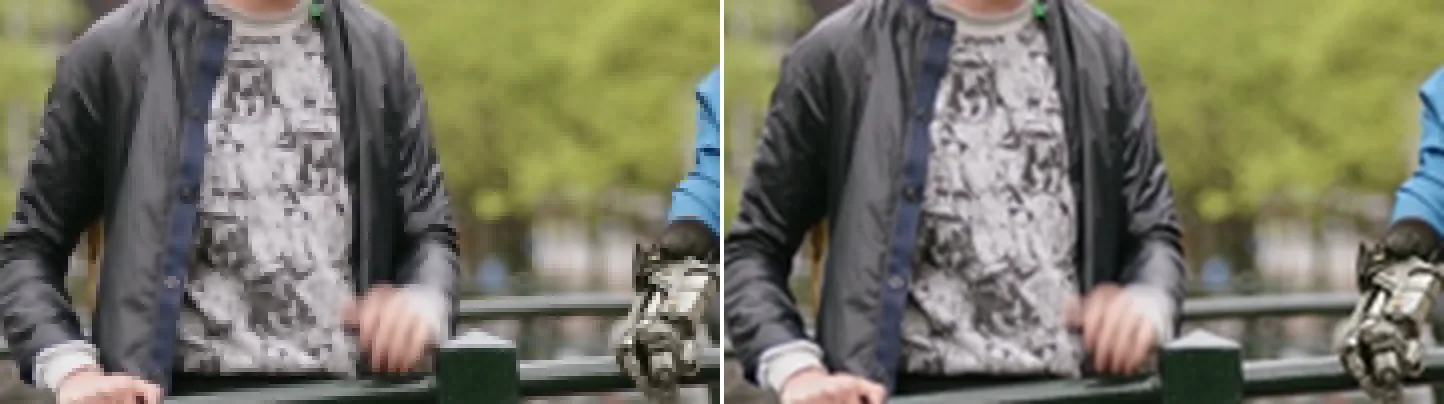
The same crop shrunk to a quarter and scaled back up: left with flags=neighbor, right with flags=lanczos. Shown at 1:1, so the blockiness is not an artefact of the page.
Source: Tears of Steel (CC) Blender Foundation | mango.blender.org, CC BY 3.0. One frame of the film, processed with the filter shown.
Basic Syntax of the scale Filter
ffmpeg -i input.mp4 -vf scale=1280:720 output.mp4| Part | Description |
|---|---|
-vf |
Option to specify a video filter (same as -filter:v) |
scale=width:height |
Output width and height in pixels |
If you set both width and height and their ratio differs from the original, FFmpeg changes the sample aspect ratio (SAR, the shape of each pixel) so that the picture keeps its original shape. A 640×480 (4:3) video scaled to 1280×720 still displays as 4:3. If the source has no SAR stored, the picture is stretched instead. Usually it is better to set one side and let FFmpeg work out the other.
Automatic Aspect Ratio Preservation
Difference Between -1 and -2
Set one side to -1 or -2, and FFmpeg calculates it from the other side so the aspect ratio stays the same.
| Value | Behavior |
|---|---|
-1 |
Keeps the aspect ratio. The result can be an odd number. |
-2 |
Keeps the aspect ratio and rounds to a multiple of 2 (required for H.264 in yuv420p). |
H.264 in the usual yuv420p format fails on odd pixel dimensions, so use -2.
Fix Width, Auto-Calculate Height
ffmpeg -i input.mp4 -vf scale=1280:-2 output.mp4Fix Height, Auto-Calculate Width
ffmpeg -i input.mp4 -vf scale=-2:720 output.mp4Relative Resizing (iw / ih Variables)
iw (input width) and ih (input height) let you resize relative to the original size.
Scale Down to Half Size
ffmpeg -i input.mp4 -vf scale=iw/2:ih/2 output.mp4Scale Up to 1.5x
ffmpeg -i input.mp4 -vf scale=iw*1.5:ih*1.5 output.mp4Halve Width While Preserving Aspect Ratio
ffmpeg -i input.mp4 -vf scale=iw/2:-2 output.mp4With iw and ih, a script works without knowing the original resolution.
Capping Maximum Resolution
To keep the output under a size limit, for example no wider than Full HD (1920px) for a 4K source, use the min() function. It picks the smaller of the input width and the limit.
ffmpeg -i input.mp4 -vf "scale='min(1920,iw)':-2" output.mp4A video narrower than 1920 keeps its width. A video 1920 or wider is scaled down to 1920. -2 calculates the height to keep the aspect ratio.
FFmpeg reads a comma as the start of the next filter. The single quotes in
'min(1920,iw)'keep the comma inside the expression, and the outer double quotes stop the shell from removing the single quotes. Without the single quotes,-vf "scale=min(1920,iw):-2"fails withNo such filter: 'iw):-2'.
Adding Black Bars with the pad Filter
To fit a video into a frame with a different aspect ratio, for example a 4:3 video into 1920×1080 with black bars left and right, combine scale and pad. scale resizes the video, up or down, to the largest size that fits the frame without changing its shape. pad fills the rest with black. A 640×480 source becomes 1440×1080 with a 240-pixel bar on each side.
ffmpeg -i input.mp4 -vf "scale=1920:1080:force_original_aspect_ratio=decrease,pad=1920:1080:(ow-iw)/2:(oh-ih)/2" output.mp4| Part | Description |
|---|---|
scale=1920:1080:force_original_aspect_ratio=decrease |
Scale up or down to the largest size that fits within 1920×1080 while preserving aspect ratio |
pad=1920:1080:(ow-iw)/2:(oh-ih)/2 |
Pad to 1920×1080 with center alignment |
The bars are black by default. For another color, write pad=...:color=white (or another color name).
Specifying the Output Pixel Format
For H.264, setting yuv420p makes the file play in more players.
ffmpeg -i input.mp4 -vf scale=1280:-2 -pix_fmt yuv420p output.mp4Or add a format filter to the chain:
ffmpeg -i input.mp4 -vf "scale=1280:-2,format=yuv420p" output.mp4Quick Reference Commands
ffmpeg -i input.mp4 -vf scale=1920:1080 output.mp4
ffmpeg -i input.mp4 -vf scale=1280:-2 output.mp4
ffmpeg -i input.mp4 -vf scale=-2:720 output.mp4
ffmpeg -i input.mp4 -vf scale=iw/2:ih/2 output.mp4
Measured: time and size
The measured command:
ffmpeg -i input.mp4 -vf scale=1280:720 -c:v libx264 -crf 23 -preset medium -an output.mp4| Metric | Measured |
|---|---|
| Wall time | 18.43 s (6.51x realtime) |
| Output size | 41.14 MB |
| vs. the no-filter re-encode baseline | -52.3% |
Machine: Intel Core i9-14900KF (32 threads), FFmpeg 8.1 (gyan.dev). Source: 1920x1080, 30 fps, 120 s, 351.4 MB (Big Buck Bunny, looped, CC BY 3.0). The runs were done one after another on 2026-09-05. The raw numbers are in the dataset.
Why it is faster and smaller
Adding the scale filter made the job faster. Re-encoding the same clip at 1080p with no filter (the baseline) took 27.97 s. Scaling it to 720p with -vf scale=1280:720, all other settings the same, took 18.43 s, even though the filter adds work.
Most of the time goes to the x264 encoder, not to the scaler. A 1280x720 frame has 4/9 of the pixels of a 1920x1080 frame, so the encoder has that much less to do. The time saved in encoding is several times what the scaler costs.
The -52.3% file size has the same cause. It is compared with the 86.26 MB from re-encoding the same source at 1080p, not with the input file. CRF 23 aims at a constant quality level, and fewer pixels need fewer bits at that quality.
Scaling always means re-encoding: -c copy cannot change the resolution. On the same machine, jobs that only copy streams took 0.41 s (copying all streams into a new file) and 0.49 s (moving the moov atom, the MP4 index, to the start of the file). To make scaling faster, adjust -preset and -crf. Among re-encoding jobs, 18.43 s is on the fast side: boxblur on the same source took 59.37 s, and a VP9 transcode took 729.16 s.
The measured command includes -an (no audio), so 41.14 MB is video only. With the audio track the file is larger.
Frequently Asked Questions
height not divisible by 2 Error
-1 produced an odd number of pixels. Use -2 instead:
ffmpeg -i input.mp4 -vf scale=1280:-2 output.mp4Image Looks Blurry After Upscaling
The default scaling method can look slightly soft when you enlarge a video. For a sharper result, add -sws_flags lanczos.
ffmpeg -i input.mp4 -vf scale=3840:-2 -sws_flags lanczos output.mp4