First, try opening the video in Windows’ Media Player.
- It won’t open → When the format is the cause or When the file was cut off.
- It opens → It plays but has no thumbnail.
- There is a thumbnail, but it is a different picture → When it shows a different image.
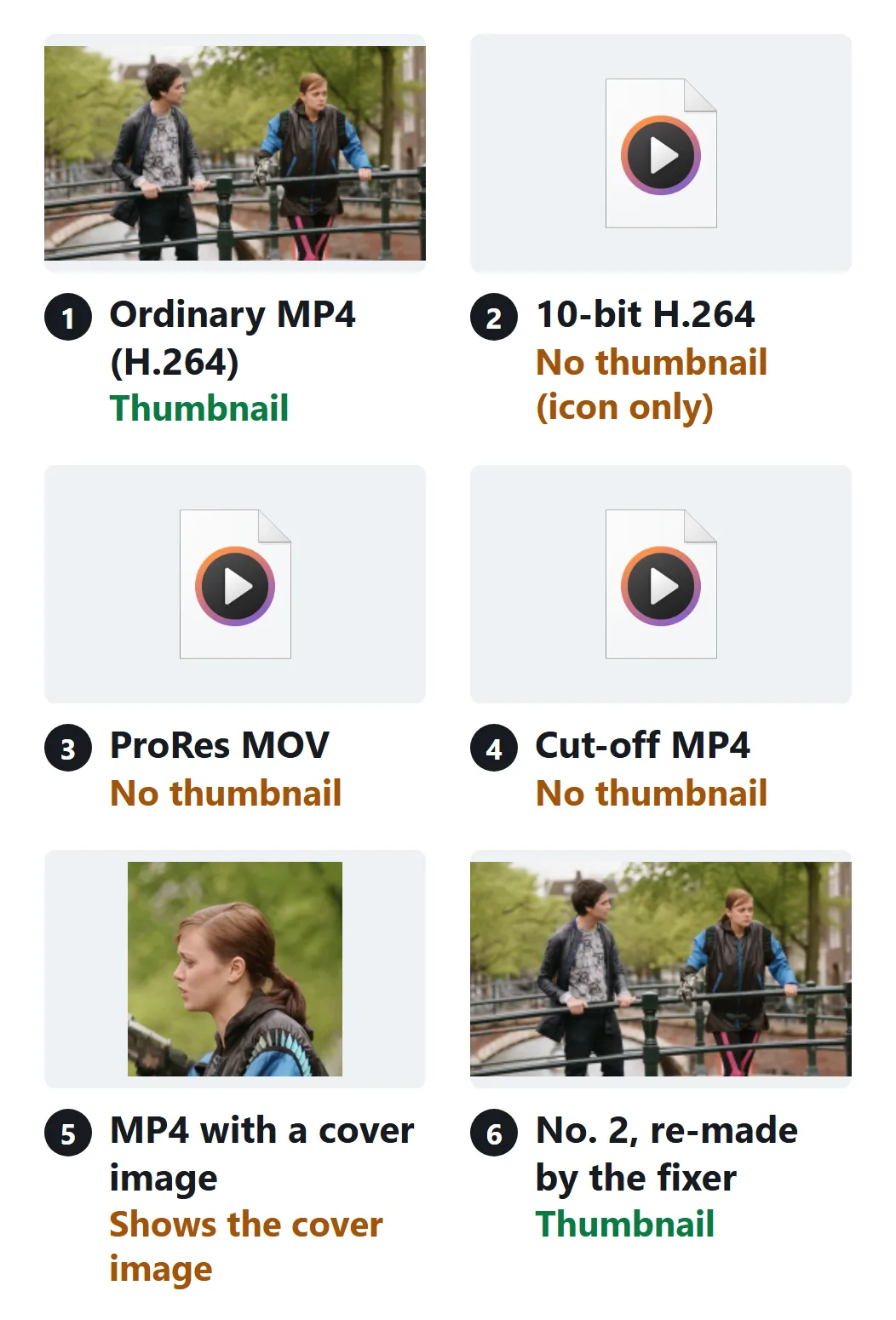
Footage: Tears of Steel (CC) Blender Foundation | mango.blender.org, CC BY 3.0
When the format is the cause
Windows cannot read 10-bit or 4:4:4 H.264, or ProRes, so it shows no thumbnail (2 and 3 in the figure). Re-make the video with the playback fixer and the thumbnail appears (6).
H.265 (HEVC) videos need “HEVC Video Extensions” from the Microsoft Store.
When the file was cut off
An MP4 whose download or copy stopped partway can have no thumbnail (4). Download or copy it again.
It plays but has no thumbnail
- Set the folder view to “Large icons” (the “List” and “Details” views show no thumbnails).
- Open “File Explorer Options” from the Start menu. On the “View” tab, clear “Always show icons, never thumbnails”.
- If that does not help, open “Disk Cleanup”, select “Thumbnails” and delete them.
When it shows a different image
If an MP4 contains a cover image, File Explorer shows that image (5). The metadata remover takes it out (it also removes details such as the recording date).
To use your own picture as the thumbnail, add it as a cover image.
ffmpeg -i input.mp4 -i cover.jpg -map 0:V -map 0:a? -map 1 -c copy -disposition:v:1 attached_pic output.mp4The results in the figure were checked on Windows 11 (with the HEVC, AV1 and VP9 extensions) by asking the same Windows function File Explorer uses to make each thumbnail (2026-10-09). They are on the data page.