Black Mask, Mosaic & Blur Video
Black out, pixelate or blur a fixed video region. Set its coordinates, dimensions, time interval and whether to remove audio.
Blur and pixelation do not guarantee unreadability. Use an opaque mask for sensitive text and review the entire clip. Audio needs a separate check.
Equivalent FFmpeg command
CLI command for your current settings. Updates live as you change controls.
ffmpeg -y -i input.mp4 -filter_complex "[0:V:0]scale=1920:1080:flags=bilinear,setsar=1,pad=ceil(iw/2)*2:ceil(ih/2)*2,format=yuv420p,drawbox=x=480:y=270:w=640:h=360:color=black:t=fill[v]" -map "[v]" -map "0:a?" -c:a aac -b:a 128k -map_metadata -1 -map_metadata:s -1 -map_chapters -1 -c:v libx264 -preset fast -crf 23 -pix_fmt yuv420p -movflags +faststart output.mp4Checks on a synthetic fixture
On 2026-09-10, native FFmpeg 8.1 processed a 3-second 320x180 test pattern with two tone tracks, subtitles, a chapter and synthetic tags. This is not browser verification.
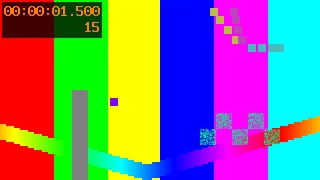
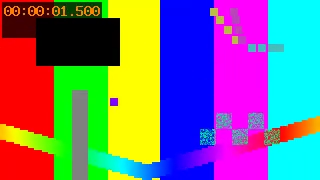
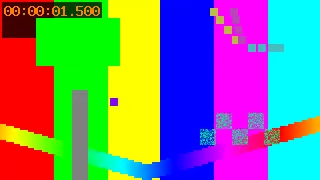
- Full mute: zero audio tracks in the output.
- Interval mute: 1-2 seconds selected. Decoded samples from 1.2-1.8 seconds were all zero on both tracks; sound remained outside the interval.
- Black mask: the full outward-rounded 84x48 region was measured. Mean decoded grayscale value was 0.034 out of 255.
- All six outputs decoded, without the fixture tags, subtitles or chapter.
- Additional format checks: full and interval muting decoded successfully in MOV, MKV and WebM, with the expected audio track counts.
These checks do not certify real faces, documents, speech, phone recordings or audio codec transition boundaries. The pixelated frame is a visual example, not proof of unreadability.
Conditions, results, commands and SHA-256 · Pre-sharing checks
How to use
- Check the first frameSelect a video and its first frame appears. If the preview cannot be shown, processing stays off, because the region cannot be checked.
- Cover the subject with a marginAdjust the rectangle. Choose black masking for names or addresses and check audio separately.
- Watch the whole outputCheck movement, reflections, other scenes, burned-in captions and conversations before sharing.
Recommended settings
When it goes wrong
The subject becomes visible later
Cause: The rectangle is fixed and does not follow faces or objects.
Fix: Cover the entire path or use an editor with tracking.
No preview appears
Cause: An unsupported browser codec, damaged media or a preview timeout may be responsible.
Fix: Convert to a supported MP4 and select it again. Processing without a visible region is disabled.
Text remains recognizable after blurring
Cause: The region and effect may retain information.
Fix: Switch to black masking, include a margin and review the entire output.
Questions
Does strong pixelation guarantee privacy?
No. Text, faces, context and audio can still support identification. Prefer black masking for confidential text and consider whether sharing is appropriate at all.
Can I mask several places at once?
There is one rectangle per run. You can process the output again, but each pass re-encodes the video. An editor with multiple masks is better for complex work.
Does it track faces automatically?
No. The preview is the first frame and processing uses fixed coordinates. Watch the whole output to check that the subject never leaves the mask.
Are audio and subtitles retained?
Audio remains unless you select removal. Separate subtitles, data, attached pictures and chapters are excluded. Burned-in captions remain outside the masked area.
What are the output format and quality?
The video is re-encoded as H.264 (CRF 23) MP4, so it is not identical to the original. The size matches how the browser displays it, and an odd edge is padded by one pixel. HDR and other 10-bit video comes out as 8-bit.
More detail (settings, limits, FFmpeg commands)
What each setting means
Browsers and limits
- Maximum 500 MB; the browser must be able to decode the first frame.
- One fixed rectangle; no automatic tracking or simultaneous multiple masks.
- Output is re-encoded. HDR and other 10-bit video becomes 8-bit.
- The black-mask measurements cover a region of a synthetic video; they do not prove that real people or documents become unidentifiable.
The same job with the FFmpeg command line
ffmpeg -i input.mp4 -vf "drawbox=x=36:y=18:w=84:h=48:color=black:t=fill" -map 0:V:0 -map 0:a? -c:v libx264 -crf 23 -preset fast -pix_fmt yuv420p -c:a aac -b:a 128k -map_metadata -1 -map_metadata:s -1 -map_chapters -1 -movflags +faststart redacted.mp4